Introduce 9981
9981
Production Introduction
9981 is an AI-powered homework tutoring system for kids.
In simple terms, 9981 can:
- turn a single math problem into a full step-by-step lesson
- generate interactive slides with narration audio so a child can learn at their own pace
- ask inline questions, re-explain wrong answers, and finish with practice exercises
A parent (Admin) enters a math problem with optional solution hints, and the AI agent builds an interactive lesson the child follows in the browser. The goal is to save parents’ time while giving children a patient, guided learning experience.
9981 has two simple views:
- Parent (Admin) — create projects, review and edit the AI lesson plan, and start a tutoring session.
- Child (Tutor) — follow the slides with audio, answer questions, and practice.
A key advantage of 9981 is data safety and simple deployment. 9981 runs in a local-first mode, and the projects it generates are saved to a folder on your own machine. The backend is mainly used for model access and usage tracking for billing.
Installation and Launch (Docker)
1. Install Docker first
Install Docker Desktop from the official Docker website (https://www.docker.com/), then make sure Docker Desktop is running.
2. Fetch images from GitHub Container Registry
9981 production images are hosted in GitHub Container Registry.
Pull the latest image from the docker Terminal
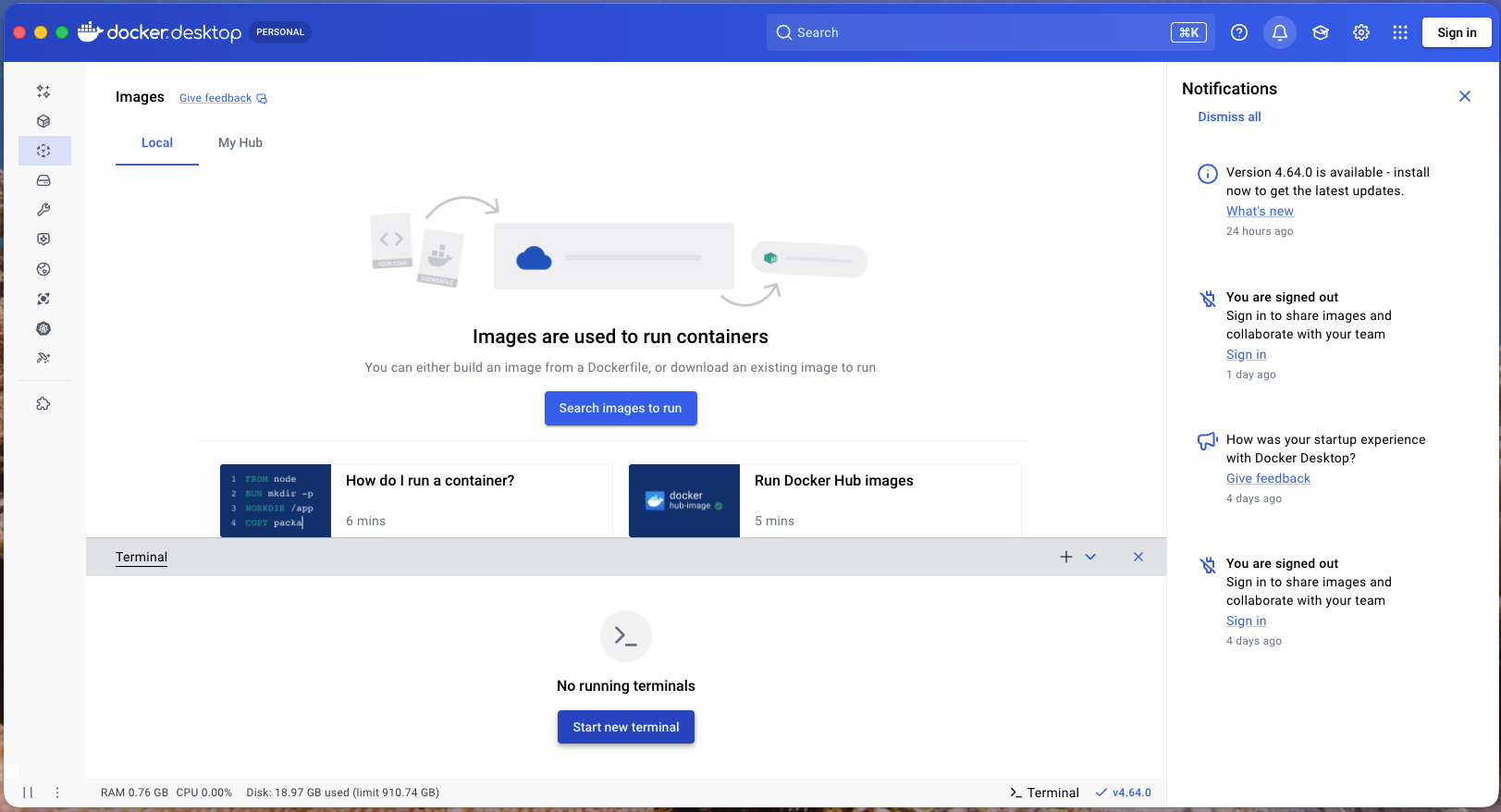
docker pull ghcr.io/flyperstudio/9981:latest
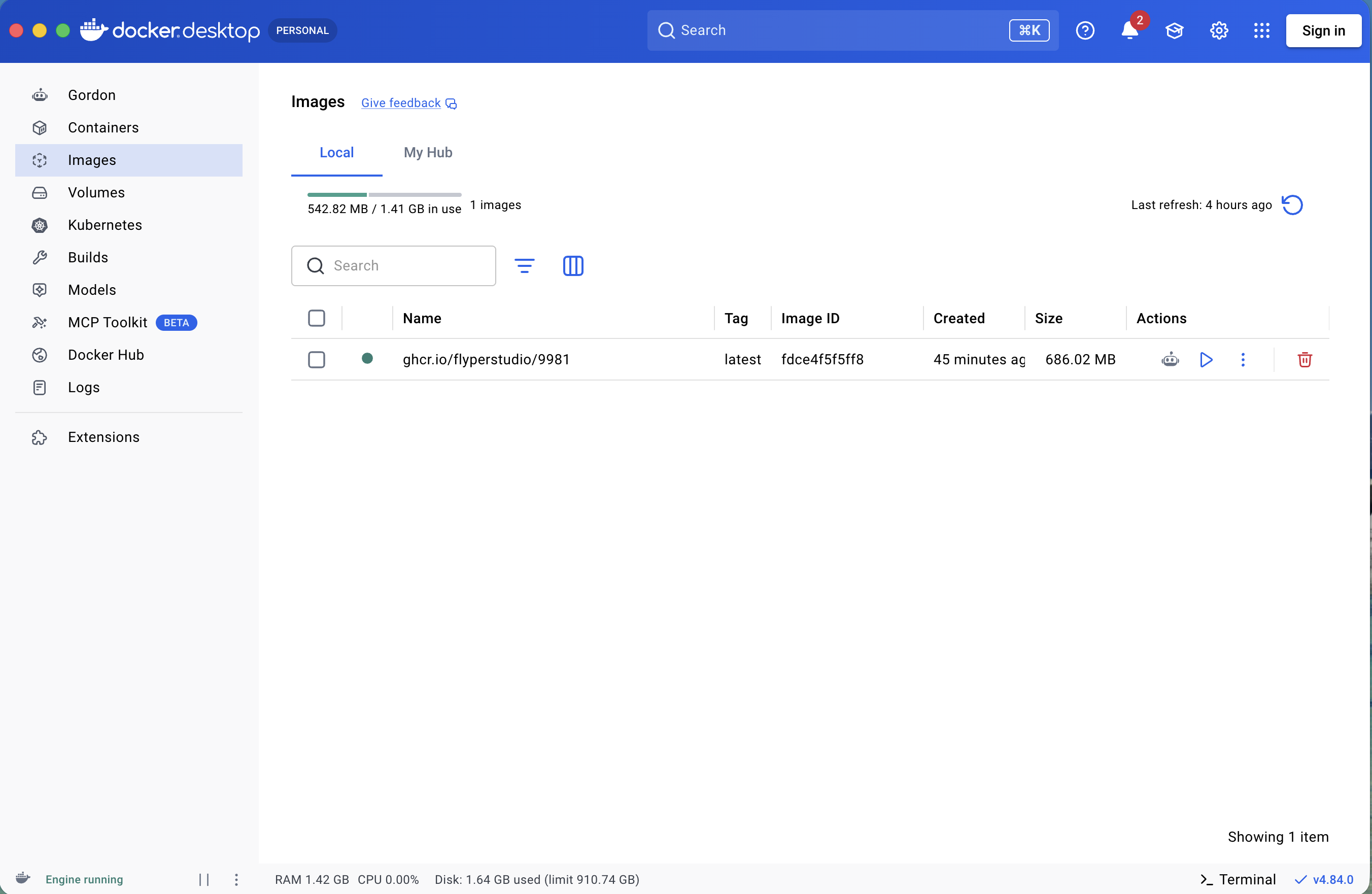
After the image is downloaded successfully, you can check it in Docker Desktop.
3. Launch container with Docker Desktop UI (no command line)
This step is designed for all users, including non-developers.
- Open Docker Desktop and go to the Images page.
- Find
ghcr.io/flyperstudio/9981:latestand click Run.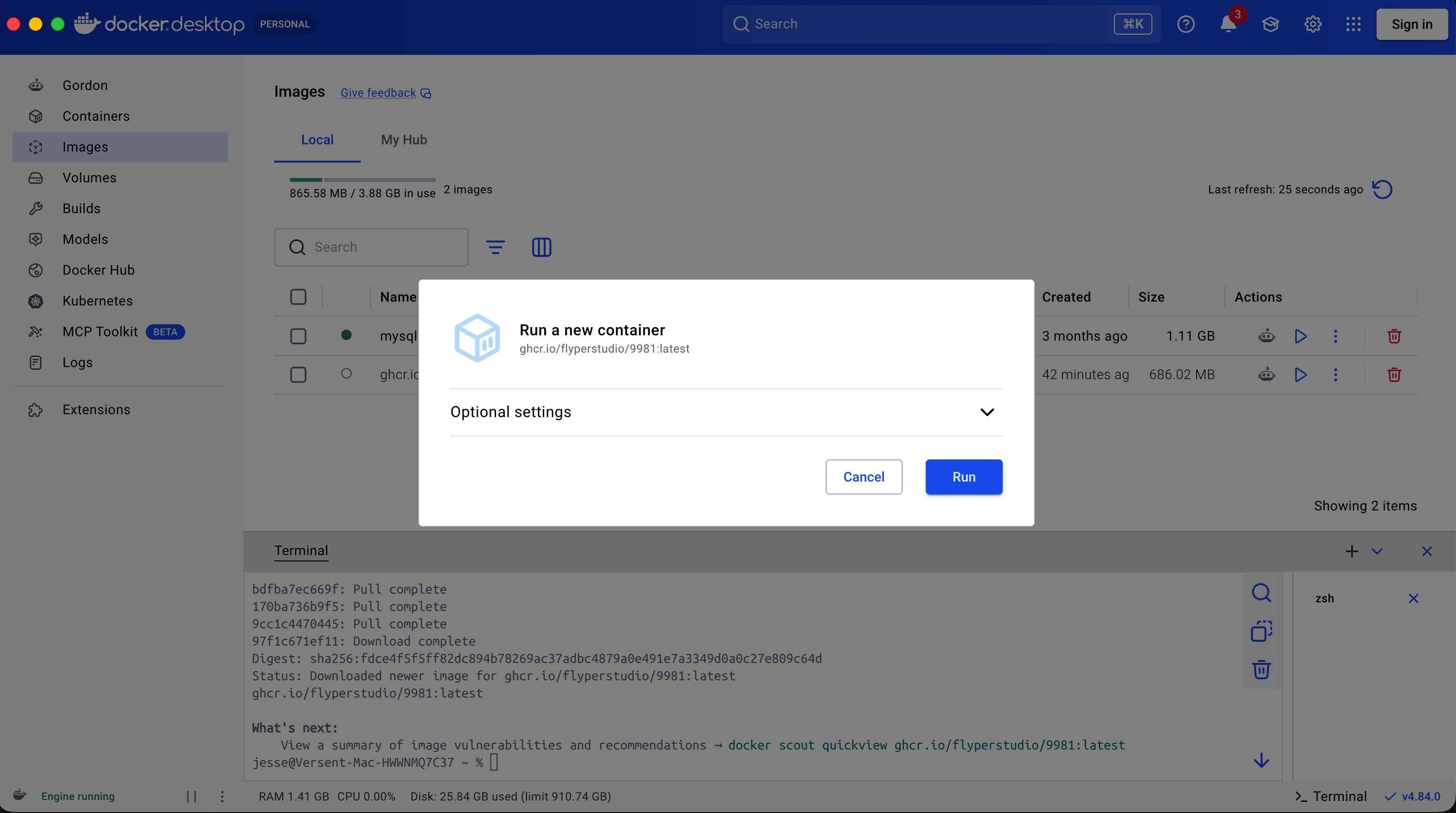
- In the run settings, configure port mapping:
Host port:
8000Container port:8000 - Configure volume mapping (bind mount):
Host path: click the folder picker and select a folder from your computer (for example, a folder in Documents).
Container path:
/app/projects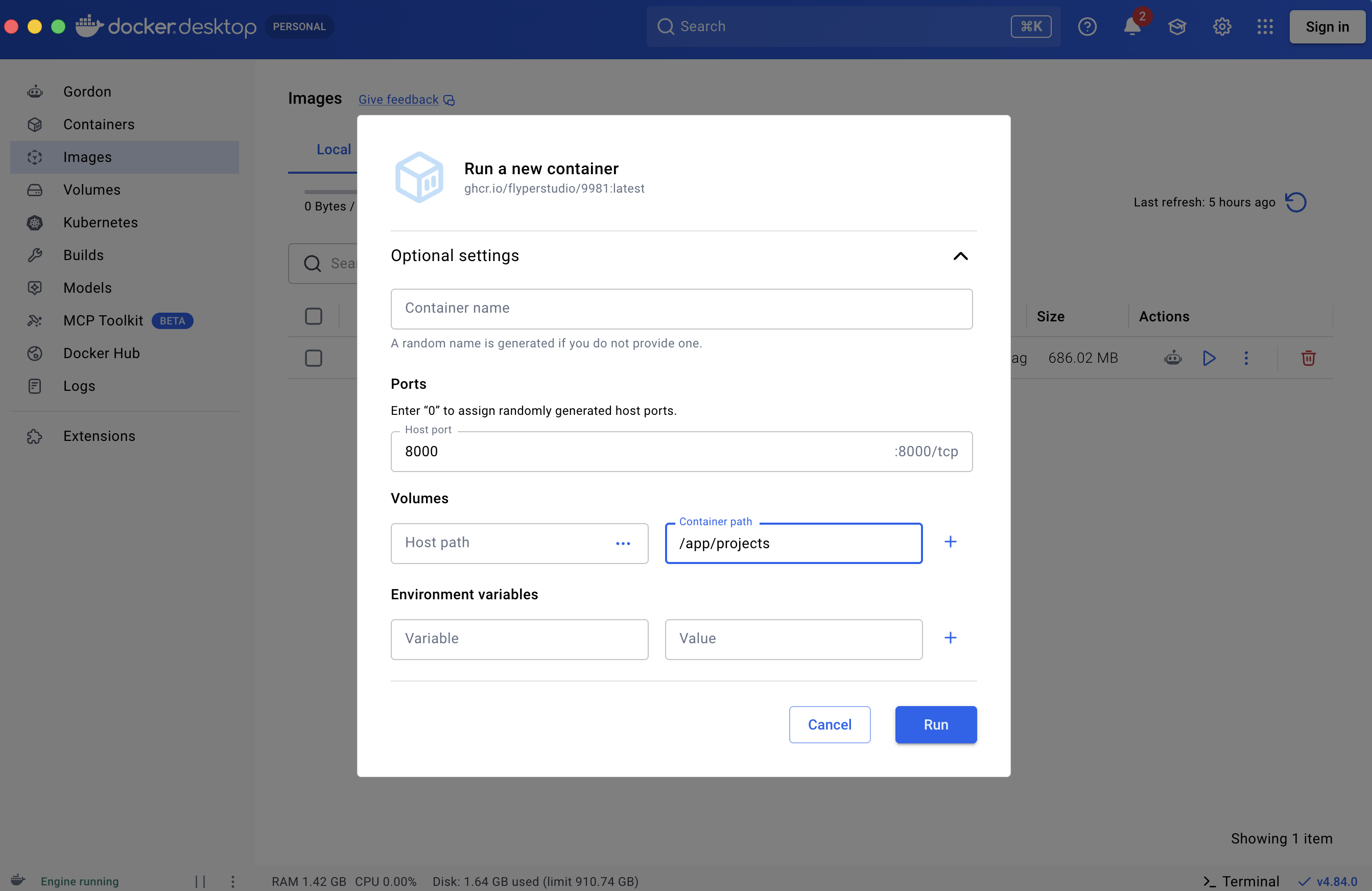
- Start the container.
Volume mapping saves the projects generated by 9981 (lesson plans, content, and sessions) to your selected local folder, so you can check and reuse them later.
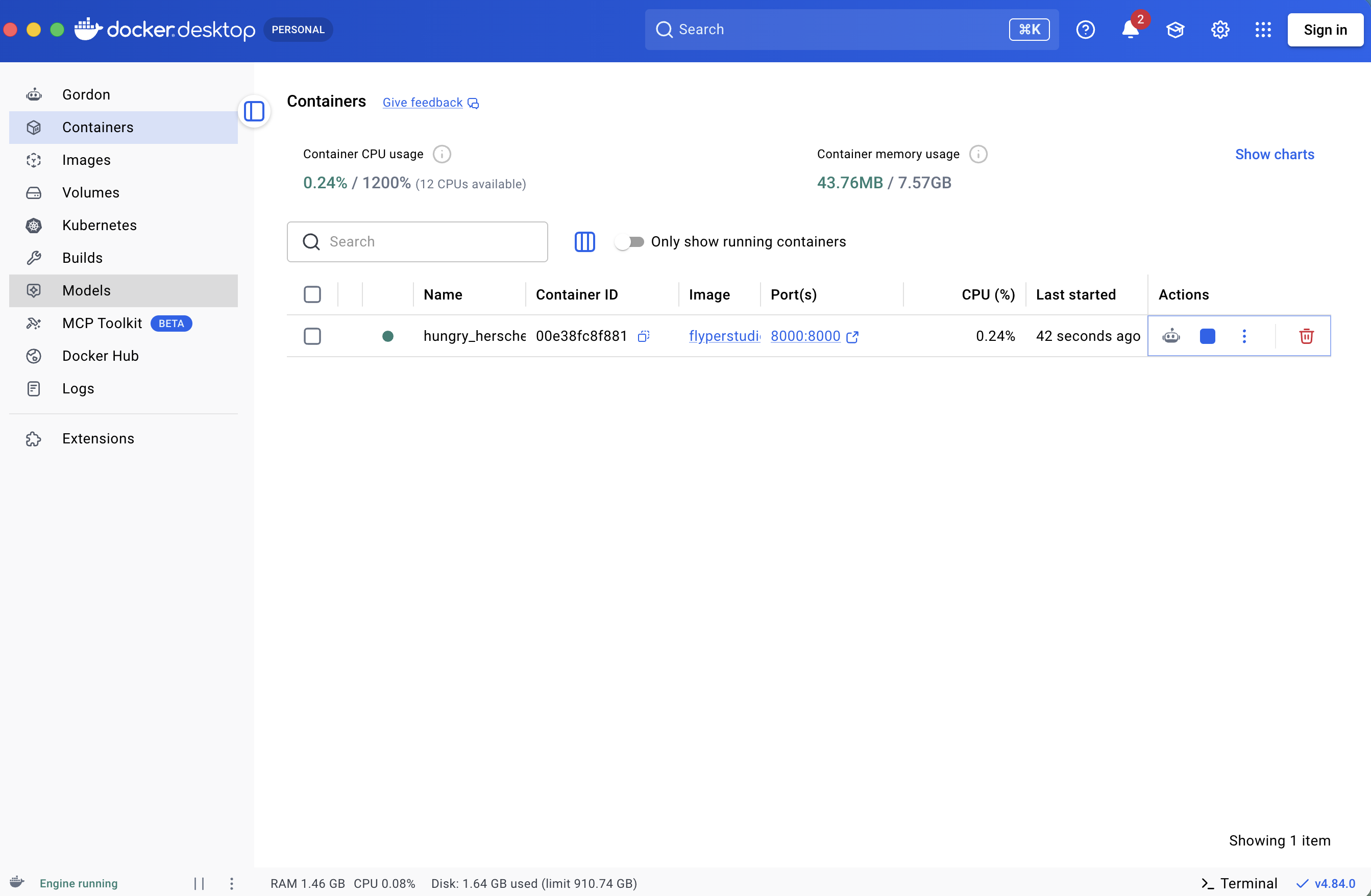
4. Confirm container is running
You can confirm in Docker Desktop that the image is launched.
5. Open 9981 in browser
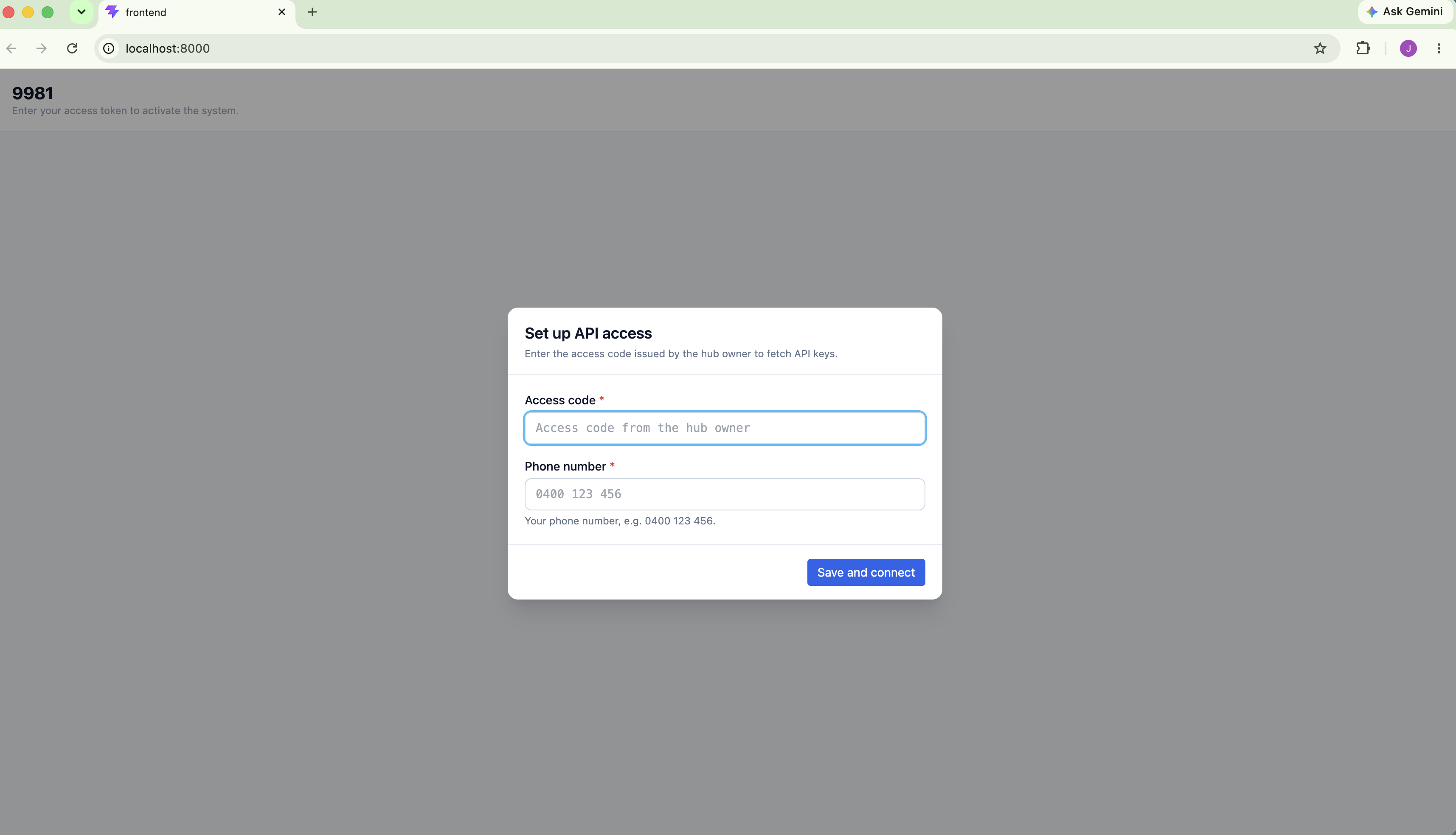
The frontend and API are served from the same port. Open:
- Parent (Admin): http://localhost:8000/
You should see the initial page:
6. Stop container when not in use (save resources)
To save CPU and memory resources, stop the container after use:
- Open Docker Desktop and go to the Containers page.
- Find the 9981 container you started.
- Click Stop.
In the image below, you can see the Stop button in Docker Desktop:
When you need 9981 again, click Start to run the same container.