Introduce ELES
ELES
Production Introduction
ELES is a tutoring-focused exam question generation system.
In simple terms, ELES can:
- duplicate existing exam questions
- create more questions in the same style and difficulty
- help teams quickly prepare larger question sets for practice and assessment
The goal is to save teacher and content team time while keeping question quality and format consistent.
A key advantage of ELES is data safety and simple deployment. ELES runs mostly in a local-first mode, and your files stay on your local machine for normal usage. In some AI workflows, files must be accessible by URL, so our backend may keep uploaded files temporarily for processing. After AI processing is completed, these files are deleted. This helps avoid extra storage cost and minimizes retained data, while our backend is still mainly used for model access and usage tracking for billing.
Installation and Launch (Docker)
1. Install Docker first
Install Docker Desktop from the official Docker website (https://www.docker.com/), then make sure Docker Desktop is running.
2. Fetch images from GitHub Container Registry
ELES production images are hosted in GitHub Container Registry.
Pull the latest images from the docker Terminal
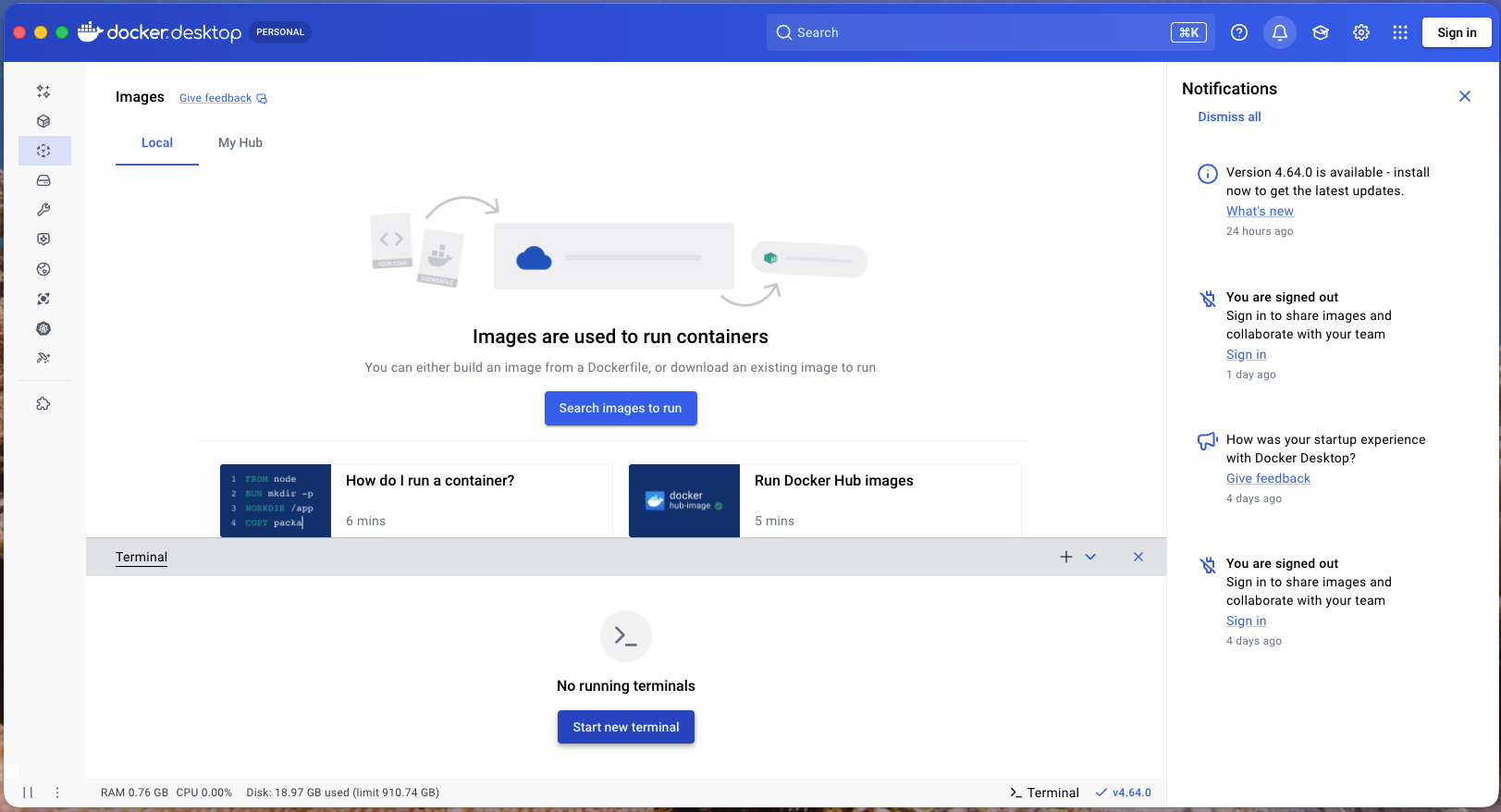
docker pull ghcr.io/flyperstudio/eightlegsessay-client:latest
After the image is downloaded successfully, you can check it in Docker Desktop.
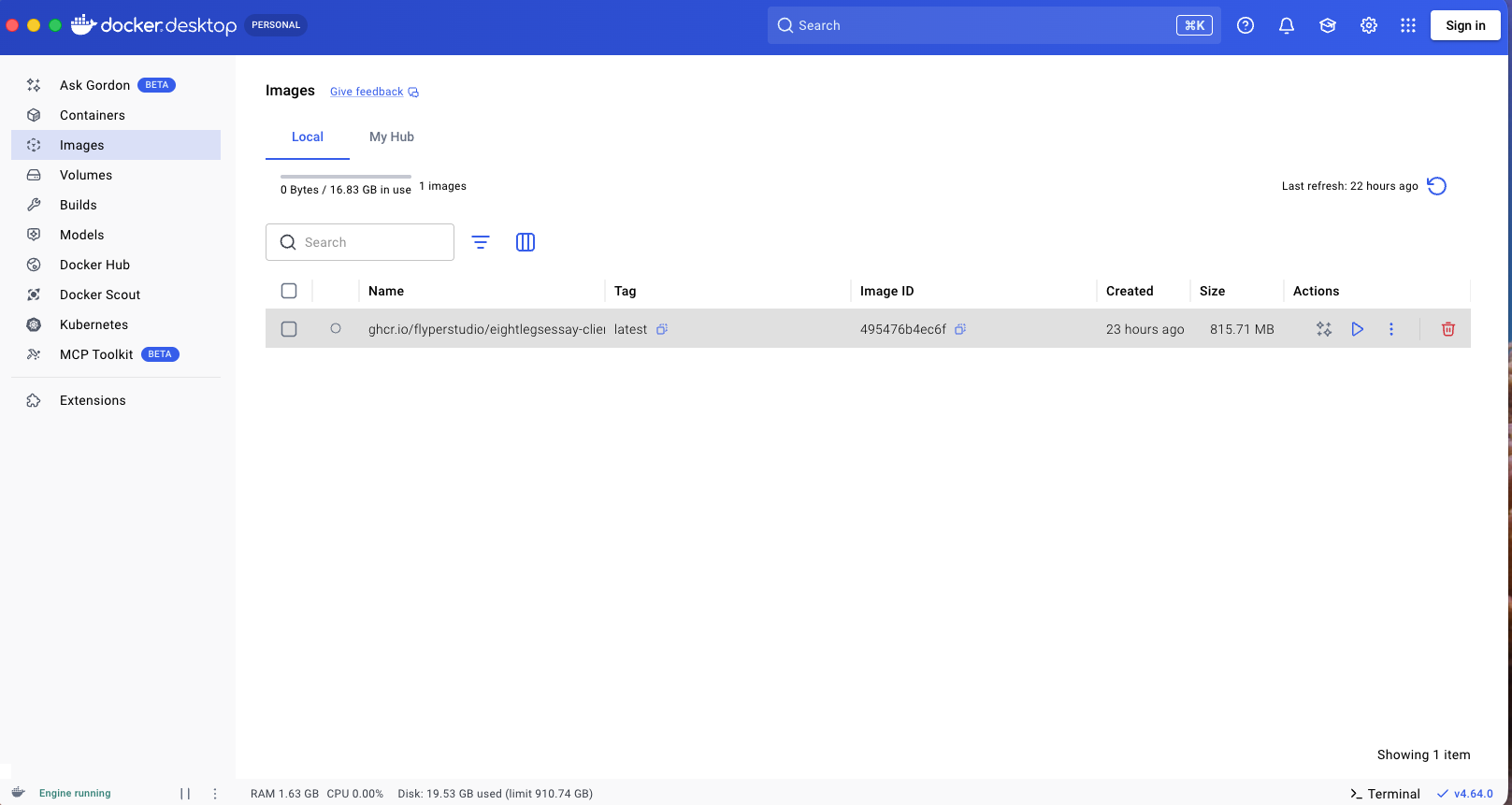
3. Launch container with Docker Desktop UI (no command line)
This step is designed for all users, including non-developers.
- Open Docker Desktop and go to the Images page.
- Find
ghcr.io/flyperstudio/eightlegsessay-client:latestand click Run.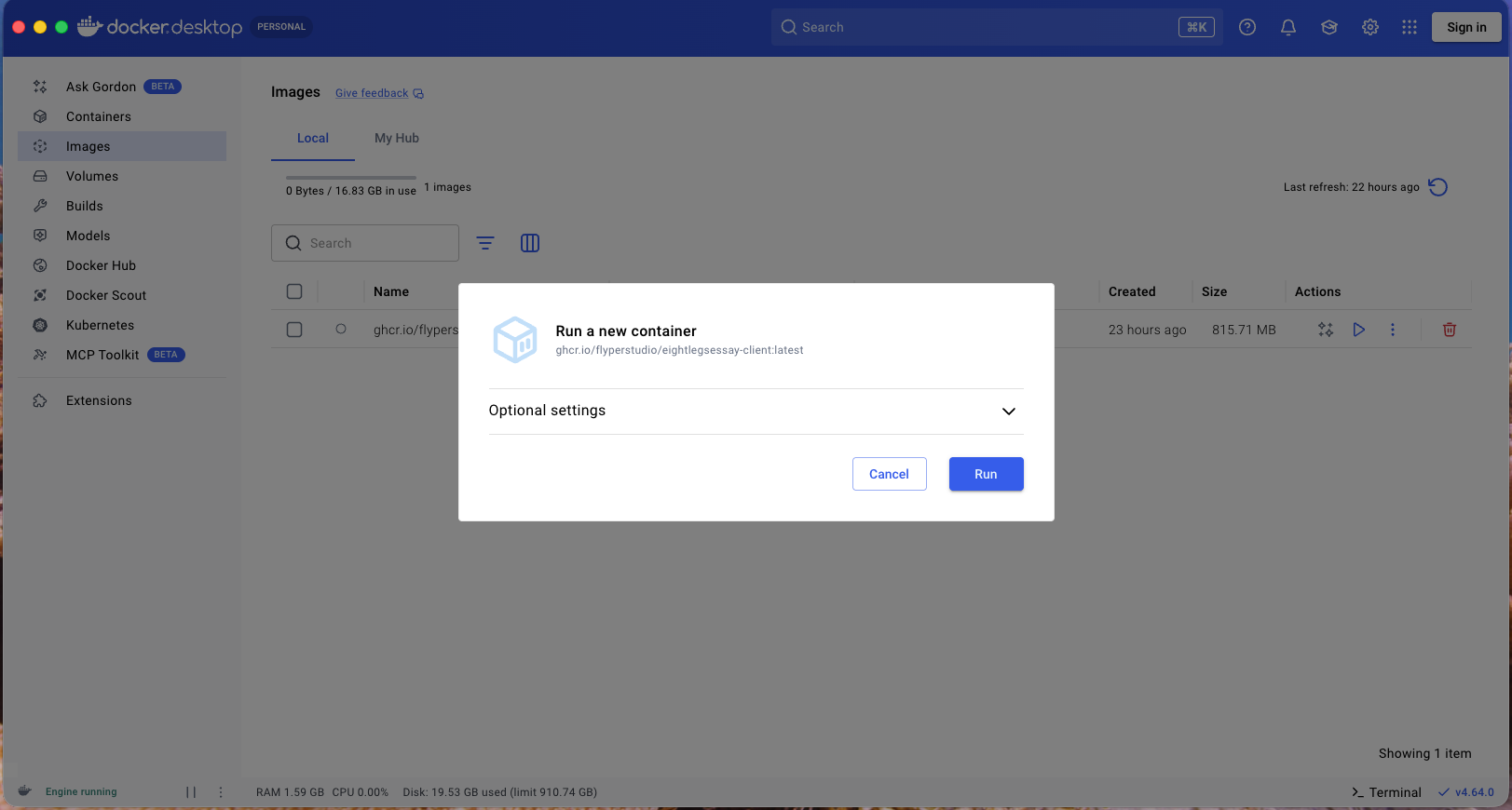
- In the run settings, configure port mapping:
Host port:
8080Container port:8080 - Configure volume mapping (bind mount):
Host path: click the folder picker and select a folder from your computer (for example, a folder in Documents).
Container path:
/data/blob_storage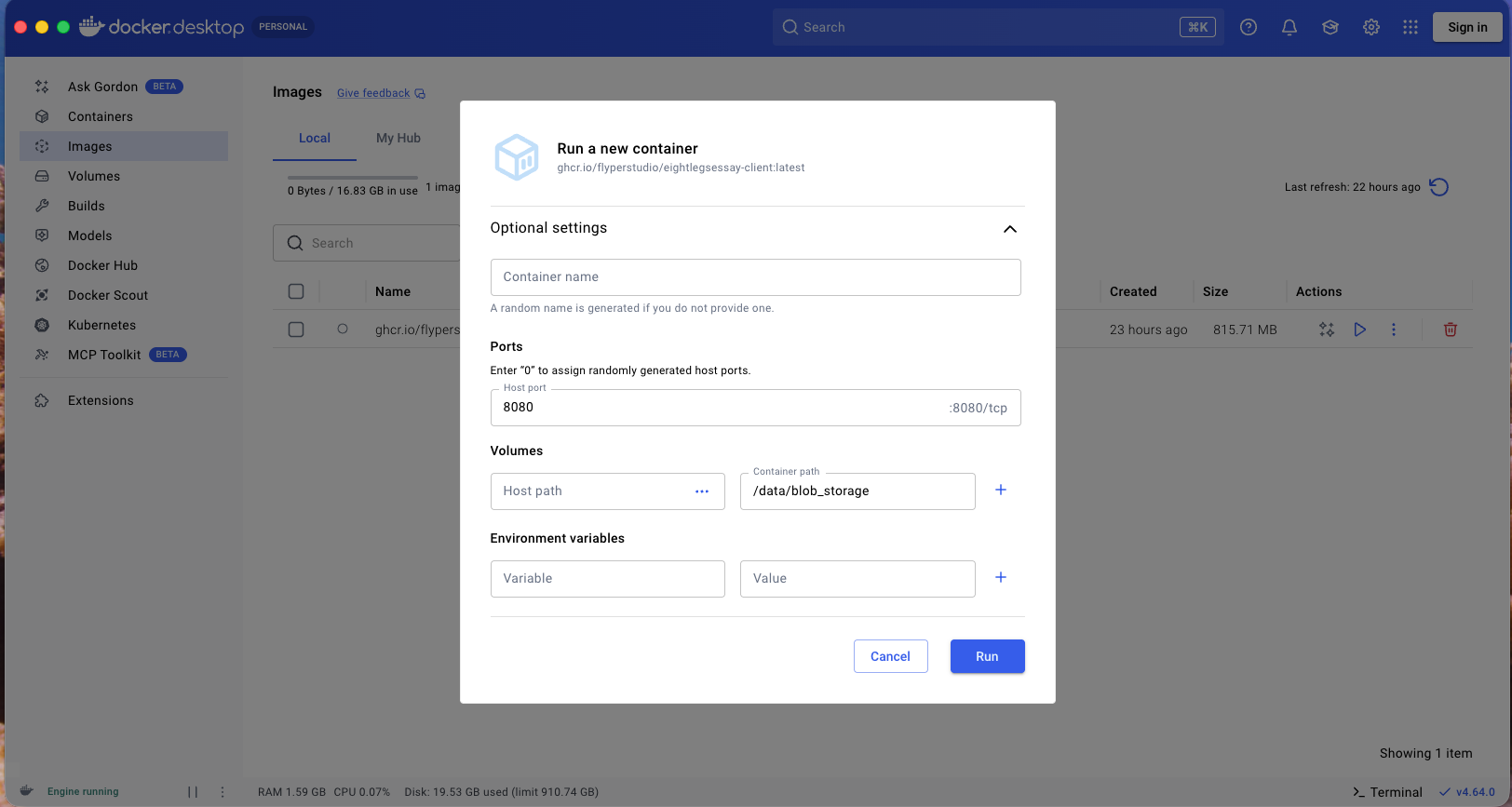
- Start the container.
Volume mapping saves middle files generated by ELES to your selected local folder, so you can check and reuse them later.
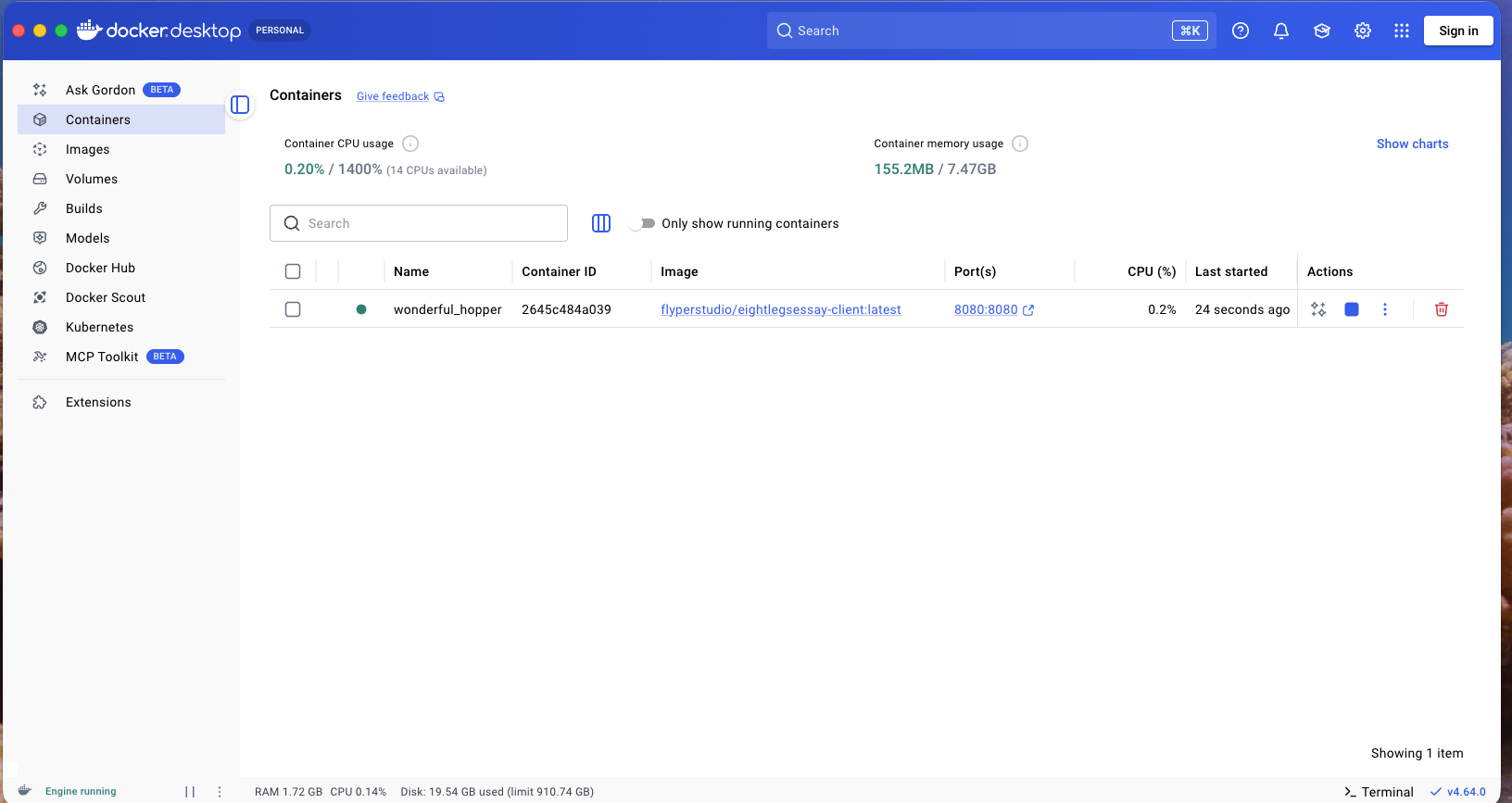
4. Confirm container is running
You can confirm in Docker Desktop that the image is launched.
5. Open ELES in browser
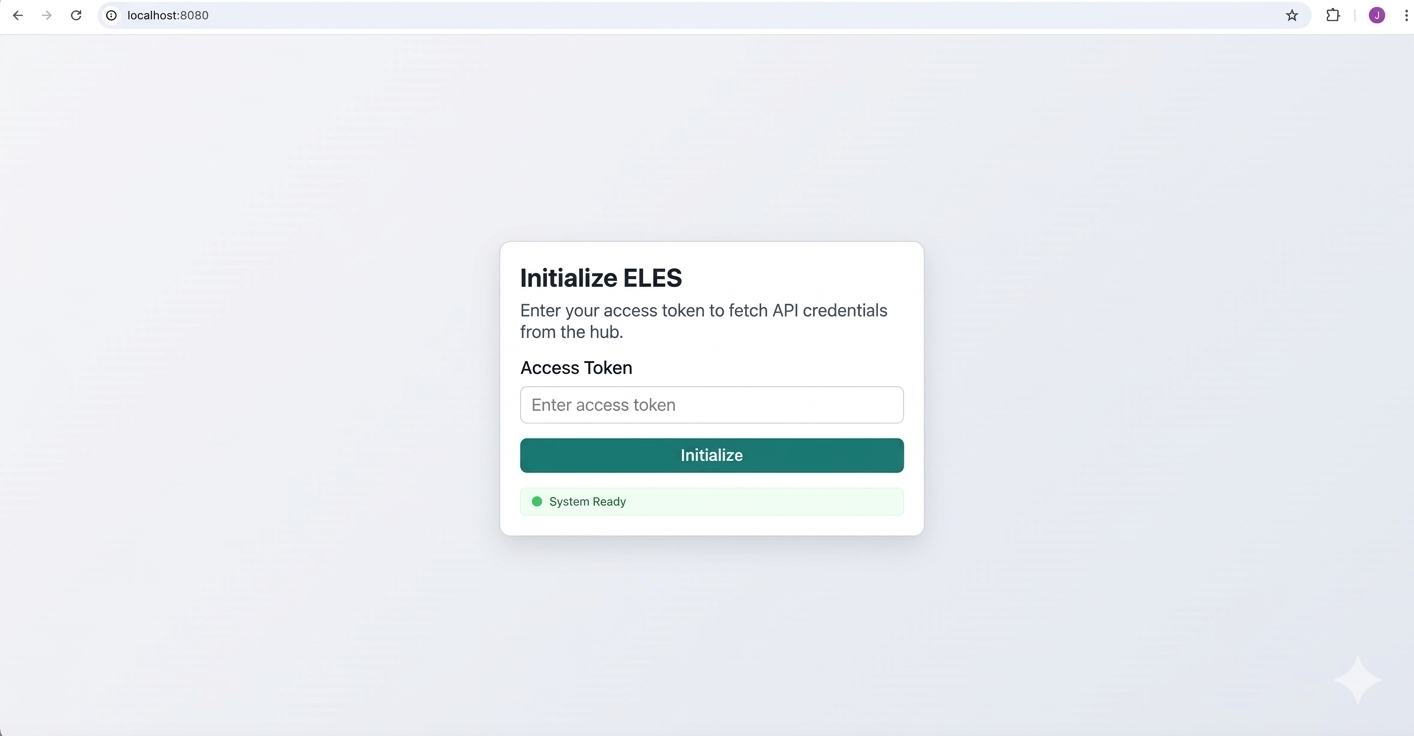
Visit http://localhost:8080 and you should see the initial page:
6. Stop container when not in use (save resources)
To save CPU and memory resources, stop the container after use:
- Open Docker Desktop and go to the Containers page.
- Find the ELES container you started.
- Click Stop.
In the image below, you can see the Stop button in Docker Desktop:
When you need ELES again, click Start to run the same container.